
Why Use Free SVG to WebP Converter for Websites?

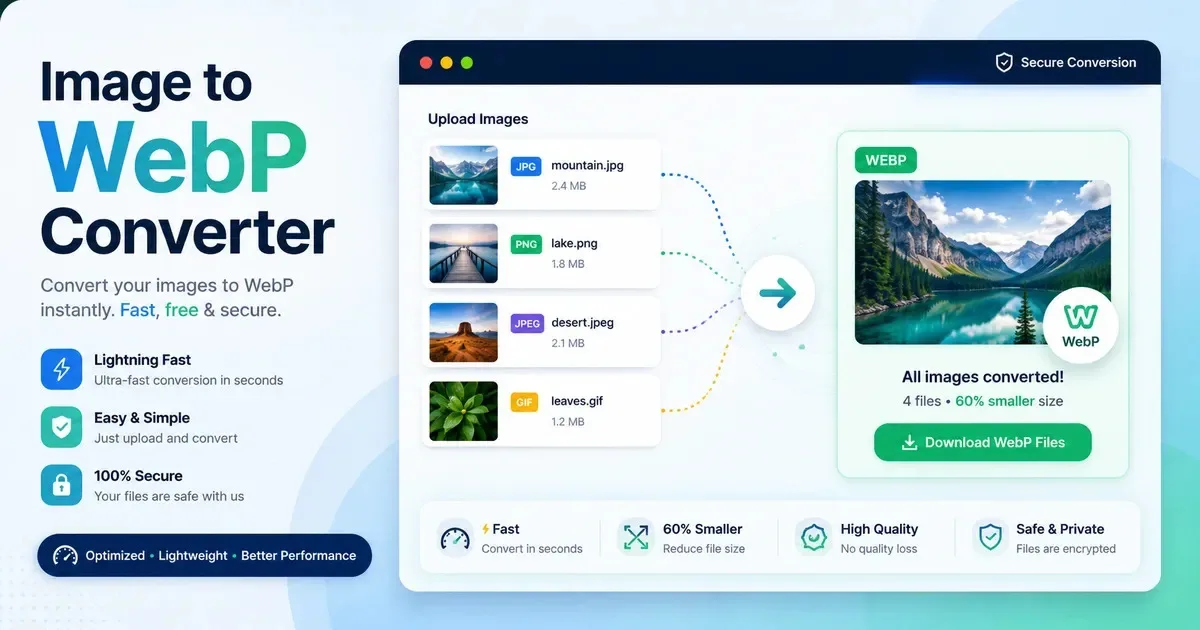
Choosing the right image format for a website sounds simple until you actually have to decide what should stay as SVG, what should become WebP, and what should be left alone. A logo might look perfect as SVG, while a fixed-size graphic may work better as a raster image.
Then there is the question of file size, transparency, image quality, browser support, and how the image will actually be delivered to visitors.This is where a Free SVG To WebP Converter can be useful.
It gives you a practical way to turn an SVG image into a WebP image without needing professional image-editing software. But that does not mean every SVG should be converted.
SVG and WebP solve different problems. SVG is a vector format that can scale without becoming blurry, while WebP is a raster image format designed for efficient pixel-based images. The sensible question is not which format is newer or supposedly better. The real question is when your website has a genuine reason to use a raster image instead of a vector one.
This guide looks at file size, website performance, image quality, transparency, fixed dimensions, compatibility, practical use cases, conversion mistakes, and situations where an Free AVIF to WebP Converter should not replace SVG.
What Is SVG and Why Is It Popular for Websites?
SVG, or Scalable Vector Graphics, stores an image using mathematical shapes, paths, lines, curves, and other instructions rather than storing a fixed grid of pixels. That difference is the reason an SVG logo can often be displayed at 100 pixels wide or 1,000 pixels wide without becoming visibly pixelated.
For websites, that makes the SVG image format particularly useful for logos, icons, diagrams, interface graphics, simple illustrations, and other artwork that needs to remain sharp at different sizes. A small company logo, for example, can be used in a desktop header, a mobile navigation area, and printed material without creating a separate raster version for every size.
SVG also works naturally with responsive web design. A browser can render the same vector artwork at different dimensions depending on the screen and layout. Designers and developers therefore often keep SVG as the original source for simple graphics.
There are limits, though. SVG is not automatically the most practical format for every image. Complex SVG artwork can contain a large amount of path and styling information. Some systems also expect raster images rather than vector files. If an image is ultimately going to be displayed at one fixed pixel size, converting it to a well-optimized raster format can sometimes make more sense.
The important point is that SVG is not an outdated format waiting to be replaced. For the right type of website graphic, it is still an excellent choice.
What Is WebP and Why Is It Used on Websites?
WebP is a raster image format developed for efficient web delivery. Unlike SVG, which describes shapes mathematically, WebP stores an image as pixels. That makes it more similar in basic behavior to formats such as JPEG and PNG.
One reason WebP is popular for websites is its compression flexibility. WebP supports both lossy and lossless compression. Lossy compression reduces the amount of image data by accepting some visual changes, while lossless compression preserves the image information more closely. The appropriate choice depends on the image and how much file-size reduction is useful.
WebP also supports transparency through an alpha channel. That means a WebP image can have transparent areas instead of requiring a solid background. This can be useful for graphics placed over different website backgrounds.
Modern browser support for WebP is broad, which is one reason it has become a practical option for WebP for websites. It is commonly used for photographs, thumbnails, content images, previews, and other raster graphics.
The distinction from SVG matters. A WebP image has a defined pixel dimension. If you create a WebP at 400 by 400 pixels and later enlarge it dramatically, it can become soft or visibly degraded. SVG behaves differently because the browser can render the vector artwork at a new size.
So WebP is not simply "SVG but better compressed." It is a different type of image format designed for a different kind of job.
Why Use Free SVG to WebP Converter for Websites?
There are several practical reasons to convert SVG to WebP, but they depend heavily on how the image will be used. Conversion should be driven by the website's requirements, not by the assumption that WebP is automatically superior.
Smaller Image Files
One reason to use an SVG to WebP converter is the possibility of producing a smaller raster file. An SVG can be surprisingly large when it contains complicated paths, filters, gradients, masks, embedded information, or other detailed artwork. Rasterizing that artwork into a sensibly sized WebP can sometimes reduce the amount of data that needs to be delivered.
However, there is no universal rule that WebP will be smaller than SVG. A simple SVG icon containing only a few shapes may be tiny. Turning that icon into a WebP can actually produce a larger file, particularly if the raster image is exported at unnecessary dimensions.
The comparison has to be made using the actual files.
Potentially Faster Image Delivery
A smaller file means fewer bytes have to travel from the server to the visitor's browser. That can be useful, particularly on slower mobile connections or pages containing many images.
This does not mean converting an SVG to WebP automatically makes a page faster. If the original SVG is already extremely small, conversion may provide no benefit. If the WebP is exported at enormous dimensions or with unnecessarily high quality, the converted file could even be larger.
The useful part of the process is optimization, not conversion for its own sake.
A Raster Image May Be Required
Sometimes the website workflow simply expects a raster image. A particular content management system, image-processing service, thumbnail generator, social sharing system, design tool, or third-party platform may work more conveniently with WebP or other pixel-based formats.
In that situation, an SVG to WebP conversion gives you a raster version while allowing you to preserve the original SVG separately.
Transparency Support
WebP can support alpha transparency, so converting an SVG with transparent areas does not necessarily mean giving up transparency. This can be useful for website graphics that need to sit naturally over different backgrounds.
The exact result depends on the converter and its export settings. Transparency should always be checked after conversion rather than assumed.
Fixed Pixel Dimensions
A raster format can make sense when you know exactly how large an image needs to appear. Suppose a decorative graphic will always be displayed at roughly 600 pixels wide inside a content card. Creating an appropriately sized WebP can be a sensible choice because the browser does not need a much larger image than the actual design requires.
This is where image dimensions become just as important as the format itself.
Convenient Conversion Without Specialized Software
A free converter is also useful simply because it removes unnecessary friction. If you have an SVG logo variant that needs to become a 500-pixel WebP preview, you may not need a professional design application just to perform that one task.
A browser-based free SVG converter can be convenient for occasional website work. The real benefit is not that the word "free" magically improves the image. It is that a straightforward conversion task can be completed without installing or learning a large graphics application.
How Can SVG to WebP Conversion Improve Website Performance?
Images contribute to the amount of data a browser has to download, decode, and display. On a fast desktop connection, a moderately sized image may not seem significant. On a mobile connection, or on a page containing many images, unnecessary image data can become much more noticeable.
When conversion produces a genuinely smaller file at appropriate dimensions, the browser has fewer bytes to download. That can reduce the image payload and potentially help the page become usable sooner. This is particularly relevant for image-heavy pages, galleries, product listings, blogs, and content cards.
Mobile performance is one reason website owners pay attention to WebP image optimization. A visitor using a slower connection should not have to download a 2,000-pixel image when the design only displays it at 400 pixels.
There is also a connection with Core Web Vitals, but it should not be exaggerated. Image optimization can contribute to better website performance, yet converting SVG to WebP does not automatically improve Core Web Vitals. A page can still be slow because of JavaScript, fonts, hosting, server response times, third-party scripts, poor caching, or badly implemented layouts.
In practice, I treat image conversion as one part of performance work. First I look at the actual image dimensions and file size. Then I consider compression, loading behavior, caching, responsive images, and the rest of the page.
The goal is not to use WebP everywhere. The goal is to avoid making the browser download more image data than the page actually needs.
SVG vs WebP: Which Is Better for Websites?
The SVG vs WebP question becomes much easier when you stop treating the formats as direct replacements.
SVG is often the better choice for logos, icons, simple illustrations, diagrams, and interface graphics that need to scale. If the same logo appears at several sizes, keeping it as SVG can provide excellent sharpness without creating separate raster files for every dimension.
SVG can also be valuable when the graphic needs to respond naturally to different screen sizes. A vector image does not have the same fixed-pixel limitation as a WebP image.
WebP becomes more attractive when you specifically need a raster representation. Fixed-size previews, thumbnails, certain CMS workflows, raster-only systems, and complex artwork can all be reasonable candidates. A WebP can also provide efficient compression when the image has been exported at a sensible size and quality level.
Should You Convert Every SVG to WebP?
No.
Automatically converting every SVG is a classic case of turning an optimization technique into a rule. A simple 2 KB SVG icon does not necessarily benefit from becoming a 20 KB WebP. A logo that needs to appear at multiple sizes may be more useful as SVG. A responsive illustration may lose one of the main advantages of being vector-based if it is converted to pixels.
On the other hand, an SVG containing complex artwork that will always be displayed at a known size might be a perfectly reasonable candidate for WebP.
The correct decision comes from the actual use case. Look at the original file, the intended display dimensions, the number of times the image is used, and the requirements of the website system. Then compare the resulting files.
What Types of Website Images Can Be Converted From SVG to WebP?
Logos are an interesting example because they can work very well in both formats, but SVG is often the natural choice. A logo displayed in a responsive header benefits from vector scalability. A WebP version may still be useful for a fixed-size preview, a social sharing graphic, an email asset, or a platform that specifically expects raster artwork.
Icons are similar. Simple interface icons usually have a strong reason to remain SVG because they may be displayed at several sizes and need to stay crisp. Converting a tiny icon to WebP purely to follow a format trend can accomplish very little.
Illustrations are more dependent on their complexity and use. A simple line illustration that appears in several sizes can remain SVG. A complex illustration that will always appear inside a fixed-size content card may be a good candidate for rasterization.
Thumbnails and previews are often more obvious WebP candidates. If an SVG graphic is being turned into a 300 by 200 pixel thumbnail, the thumbnail itself is already a fixed raster representation. The same applies to certain content cards and social sharing graphics where the output dimensions are predetermined.
The practical question is always the same: is the website benefiting from vector scalability, or does it actually need a fixed raster image?
Why Choose a Free SVG to WebP Converter?
A Free SVG To WebP Converter can be useful because many people do not need a full graphics application for occasional image conversion.
A blogger might need a WebP version of an illustration once a month. A freelancer might need to convert several client assets while building a small website. A developer may have an SVG that needs to become a raster preview for a particular component. A small business owner may simply have an existing SVG and need a WebP version without purchasing image-editing software.
Browser-based tools are convenient because they can remove installation and setup from a simple task. For occasional work, opening a converter can be much quicker than launching professional design software, importing the artwork, configuring an export, and saving the result.
That does not mean every free converter provides the same experience. Features such as quality controls, dimension settings, transparency handling, batch conversion, file-size limits, registration requirements, and processing methods vary between services.
For simple one-off conversions, however, a free tool can be perfectly adequate.
Does Converting SVG to WebP Reduce Image Quality?
Converting an SVG to WebP changes the nature of the image. The original SVG is made from vector instructions, while the WebP is made from pixels. Once rasterized, the WebP no longer has the same infinite scalability.
The output dimensions therefore matter. If you convert an SVG into a 300 by 300 pixel WebP and later display it at 900 by 900 pixels, the browser has to stretch those pixels. The image may look noticeably softer than the original SVG.
Compression settings also affect quality. With lossy WebP compression, increasing compression can reduce the file size but may introduce visual artifacts. At moderate settings, the difference may be difficult to notice, especially for a small web graphic. At aggressive settings, edges, gradients, text-like details, and fine patterns can suffer.
This is why I recommend keeping the original SVG even after creating a WebP version. The SVG is your source artwork. The WebP is a delivery version for a particular use case.
A properly sized WebP with sensible compression can look excellent. The problem is not rasterization itself. The problem is exporting the wrong dimensions or pushing compression farther than the visual result can tolerate.
How to Choose the Right WebP Size and Quality
Start with how the image will actually appear on the website. If a graphic is displayed at approximately 500 pixels wide, there is usually little reason to export a giant WebP simply because larger dimensions sound safer.
Output dimensions and image quality work together. A very large image at maximum quality can waste storage and bandwidth. An extremely small image with aggressive compression can look poor. Neither extreme is a good optimization strategy.
For example, imagine an SVG illustration that occupies a 450-pixel-wide content area. Creating a WebP close to the actual required display size may be sensible. If the design sometimes needs a somewhat larger version for high-density screens, you can account for that requirement rather than exporting an enormous image by default.
Quality settings should be judged visually. A setting that works beautifully for one illustration may be excessive for another. Gradients, fine lines, textures, and detailed artwork can respond differently to compression.
The goal is not simply the smallest file. The goal is an appropriately sized file that looks good at its actual display size.
Common Mistakes When Converting SVG to WebP
Converting Every SVG Automatically
This happens when WebP is treated as a universal replacement for older formats. It ignores the main advantage of SVG, which is scalability. Simple logos and icons can become less flexible after unnecessary rasterization.
Choosing Incorrect Output Dimensions
Exporting a 4,000-pixel WebP for an image displayed at 400 pixels wastes data. Exporting a 200-pixel WebP for a 600-pixel display area can make the image look soft. The correct dimensions should come from the website layout and expected viewing conditions.
Overcompressing the Image
Trying to achieve the smallest possible file can backfire. Strong compression may introduce visible artifacts, particularly around sharp edges, gradients, and detailed areas. A slightly larger image that looks clean is often the better practical choice.
Deleting the Original SVG
The WebP should not normally replace the original source artwork. Keep the SVG so you can create another size, edit the artwork, produce a different format, or generate a higher-resolution version later.
Forgetting to Check Transparency
An SVG may have transparent areas that are important to its appearance. After conversion, inspect the WebP against the backgrounds where it will actually be used. Transparency behavior can depend on the conversion settings and the particular tool.
Assuming WebP Automatically Improves SEO
Changing an image extension is not an SEO shortcut. Search visibility depends on many factors, and image optimization is only one part of website quality. WebP can contribute to efficient image delivery, but converting an SVG does not automatically improve rankings.
Ignoring the Actual Display Environment
An image can look fine on your development monitor and still be poorly suited to a mobile layout. Consider the real dimensions, responsive behavior, loading conditions, and devices where the image will appear.
How to Use a Free SVG to WebP Converter
A typical conversion workflow is straightforward. Start by selecting the SVG you actually want to use on the website. Before converting it, determine roughly how large the resulting image needs to be displayed.
Choose suitable output dimensions and, where the converter provides them, adjust WebP quality settings. If the original artwork uses transparency, make sure the conversion process preserves it. Then convert the image and inspect the resulting WebP rather than assuming the output is correct.
Compare the new file with the original SVG. Look at both visual quality and file size. Open the WebP at its intended display size, check edges and transparent areas, and make sure nothing important disappeared during rasterization.
Once the output is satisfactory, add it to the website using the dimensions appropriate for the actual design. Keep the original SVG stored safely rather than treating the converted WebP as your only copy.
Best Practices for Using WebP on Websites
Good website image optimization starts with using sensible dimensions. An image should be large enough for the display environment but not dramatically larger than necessary. This matters more than simply choosing a fashionable file format.
Compression should also be based on the actual image. Test the visual result instead of automatically choosing the highest or lowest possible quality. A clean image at a reasonable file size is usually more useful than an aggressively compressed image that visitors can immediately see is degraded.
Responsive images can help when the same graphic appears at significantly different sizes. Instead of forcing every device to download the largest version, a website can provide appropriately sized image resources where the implementation supports them.
Test images on real devices and connections when performance matters. Desktop testing on a fast connection can hide problems that become obvious on a mobile device.
Keep your original SVG files as source assets, particularly for logos, icons, illustrations, and other artwork that may need future editing. Also remember that image optimization includes more than file format. Loading behavior, caching, lazy loading where appropriate, server configuration, and page layout all influence performance.
For meaningful content images, use useful alt text when the image conveys information. Decorative images should be handled appropriately so they do not create unnecessary noise for assistive technology.
Is a Free Online SVG to WebP Converter Safe?
The safety and privacy of an online converter depend on how that particular service works. Some tools may process files locally in the browser, while others may upload the SVG to a remote server for processing. Those are very different privacy situations.
Before uploading artwork, consider whether the service explains what happens to submitted files. Look for information about storage, deletion, privacy, file-size limits, registration requirements, and other terms. Do not assume that every free converter follows the same process.
This matters more when the SVG contains proprietary artwork, unreleased branding, client material, product designs, or other assets that you would not normally distribute to a third party.
For ordinary public website graphics, an online converter may be perfectly practical. For confidential or commercially sensitive artwork, however, a local conversion workflow can be preferable if you need tighter control over the files.
Free SVG to WebP Converter vs Professional Image Software
A free converter is usually sufficient when the task is straightforward. If you occasionally need to turn an SVG into a WebP, adjust its dimensions, and check the result, professional image software may be unnecessary.
This is particularly convenient for quick website jobs, small projects, occasional content updates, and users who do not regularly work with graphics.
Professional software becomes more useful when conversion is only one part of a larger workflow. If you need advanced editing, extensive batch processing, color management, repeated exports, asset libraries, or a production pipeline that generates many image variations, dedicated software or automated image-processing tools can save considerably more time.
The choice should reflect the job. There is no prize for using a complicated tool when a simple converter does exactly what you need.
Conclusion
The biggest mistake with Free SVG To WebP Converter tools is assuming that conversion is automatically an optimization. SVG and WebP are designed around different image models. SVG remains an excellent choice for scalable website graphics such as logos, icons, diagrams, and simple illustrations. Its ability to remain sharp at different sizes is difficult to replace when that flexibility is actually needed.
WebP becomes useful when your website has a reason to use a raster image. A fixed-size graphic, thumbnail, preview, complex illustration, or raster-based workflow may benefit from an appropriately sized WebP. Efficient compression and transparency can make WebP practical for these situations, but the result still needs to be evaluated based on actual dimensions, image quality, and file size.
A free converter fits nicely into this process because it provides a quick way to create a WebP version without professional software. The sensible workflow is to keep the original SVG, decide how the image will actually be used, choose suitable dimensions and compression, and compare the resulting WebP with the source. Do not convert an SVG simply because WebP is newer. Convert it when the website has a genuine reason to use a raster image, and let the actual result, rather than the format label, determine whether the change was worthwhile.
FAQs
Is WebP Better Than SVG for Websites?
Neither format is universally better because they are designed for different purposes. SVG is a vector format, making it particularly useful for graphics that need to scale cleanly across different screen sizes, such as logos, icons, diagrams, charts, and simple illustrations. WebP is a raster format, so it can be a practical choice when you need an image with fixed pixel dimensions, efficient raster compression, or a format that fits naturally into a pixel-based image workflow.
The better choice depends on the type of image and how it will be used on the website. If scalability, sharpness at different sizes, or easy editing of vector shapes is important, SVG may be the better option. If you need a compressed raster image for a specific display size, WebP may make more sense. In some websites, using both formats for different assets can provide the most practical approach.
Why Should I Use a Free SVG to WebP Converter?
A Free SVG To WebP Converter can provide a quick and convenient way to create a WebP version without purchasing or installing professional image-editing software. This can be helpful for occasional website work, blog graphics, previews, small design projects, and development tasks where you simply need a raster version of an existing SVG file.
The main advantage is convenience rather than automatic optimization. After conversion, you should still check the output dimensions, image quality, transparency, and file size to make sure the WebP is suitable for its intended use. It is also a good idea to keep the original SVG because it can be useful later if you need to create another WebP version at a different size or with different compression settings.
Does Converting SVG to WebP Make a Website Faster?
It can make a website faster when the conversion results in a genuinely smaller and appropriately sized image. A smaller image generally requires fewer bytes to download, which can be particularly useful for visitors using mobile devices or slower internet connections. WebP can provide efficient compression for raster images, potentially reducing the amount of image data that a browser needs to download.
However, simply converting an SVG to WebP does not guarantee better website performance. The final result depends on factors such as the original SVG's complexity, WebP dimensions, compression settings, loading method, caching, and how the image is used on the page. Other resources, including JavaScript, fonts, videos, hosting performance, and layout behavior, can also have a much larger effect on loading speed and Core Web Vitals.
Does WebP Support Transparent Backgrounds?
Yes. WebP supports alpha transparency, which means transparent areas of an image can remain transparent instead of being replaced by a white, black, or other solid background. This makes WebP suitable for many website graphics where the image needs to appear naturally over different backgrounds.
Transparency can be useful for logos, illustrations, interface elements, product graphics, and decorative website assets. However, the result also depends on how the SVG is converted. Some conversion tools or settings may handle transparency differently, so it is worth opening the finished WebP and checking it against the original SVG before using it on a live website.
Will Converting SVG to WebP Reduce Image Quality?
It can, depending on the output dimensions and compression settings used during conversion. SVG is a vector format, so its shapes can be rendered at different sizes without the same pixel-scaling limitations found in raster images. When an SVG is converted to WebP, it becomes a raster image with a fixed number of pixels, meaning it can lose sharpness if it is later displayed substantially larger than its intended output size.
A properly sized WebP can still look very sharp and high quality, especially when suitable compression settings are used. Quality problems are more likely when the output dimensions are too small, the image is enlarged beyond its intended size, or lossy compression is applied too aggressively. Keeping the original SVG is therefore useful because you can return to it whenever you need to generate a new WebP at a different resolution or quality level.
0 comments
Log in to leave a comment.
Be the first to comment.